Playing GameQ
The room is your game library. Walk to a shelf to play, or talk to the clerk for controls, the game list, and information about your last session.
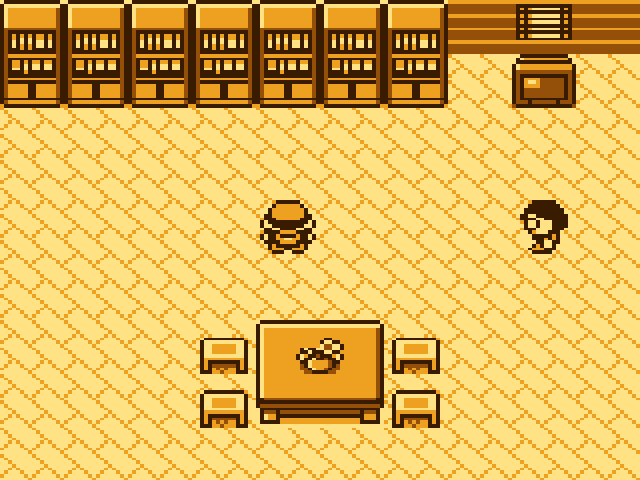
Test-harness capture using GameQ’s renderer, not a photograph of the device.
Find your way around
Section titled “Find your way around”| Place or action | What happens |
|---|---|
| Bookshelves across the top | Face a shelf and press Z. Its game filename appears; press Enter to play or Cancel to stay in the room. |
| Clerk on the right | Face the clerk and press Z to open GameQ desk. |
| Enter or Cancel in the room | Opens the same GameQ desk without walking to the clerk. |
| DOOM cabinet | Shows a message about planned DOOM support. It does not launch a game yet. |
The eight shelves run left to right. Games fill them in filename order, so the first game is on the first shelf. An empty shelf explains how to add games.
At GameQ desk, use Up/Down and Enter to choose:
- Controls — the key guide.
- Rescan SD card — refresh the shelves after adding or changing games.
- System info — information and the save result from your last game.
- Return to room — close the desk. Cancel also closes it.
Returning from a game puts you back at the shelf you used. Restarting the Q starts you at the room’s usual starting position.
Keys while playing
Section titled “Keys while playing”| Q key | Game Boy control |
|---|---|
| Arrow keys | Move / choose a menu item |
| Z | A — confirm, talk, advance text |
| X | B — back / cancel inside the game |
| Enter | Start — open the game’s menu |
| Backspace | Select |
| SHIFT/CAPS | Toggle fast-forward on or off |
| Cancel | Leave the game and return to the GameQ room |
Z advances Pokémon dialogue. The arrow keys choose an answer when the game presents a list. X stays inside the game; the larger Cancel key leaves it.
Tap the physical SHIFT/CAPS key once for fast-forward, then again for normal speed. You do not need to hold it or press SYM. Fast-forward runs as fast as the Q can manage; there is no fixed speed multiplier. GameQ uses the NFC activity light as the fast-forward indicator. That indicator still needs separate confirmation on physical hardware.
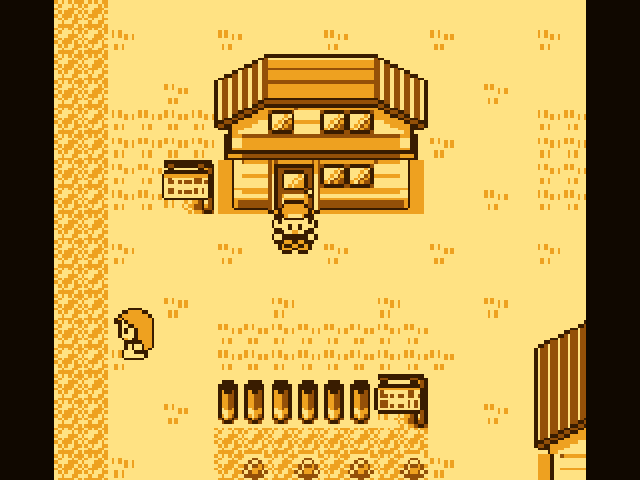
Test-harness capture using GameQ’s renderer, not a photograph of the device.
The room fills the 320 × 240 display. Game Boy games use 266 × 240 pixels with narrow side bars to preserve their original proportions. The current palette is amber, and there is no game audio.
Save your progress
Section titled “Save your progress”Use the game’s own save command. GameQ copies that save to the MicroSD card; it does not provide a save-anywhere snapshot.
For Pokémon Red:
- Press Enter to open the Pokémon menu.
- Select SAVE with the arrows and confirm with Z. Choose YES and press Z when asked to save, including the overwrite confirmation if shown.
- Wait for the message confirming the game was saved. Keep the SD card inserted.
- Press Cancel to return to the room. GameQ finishes writing any pending save before showing the room.
- To check it, launch the same game again and choose CONTINUE.
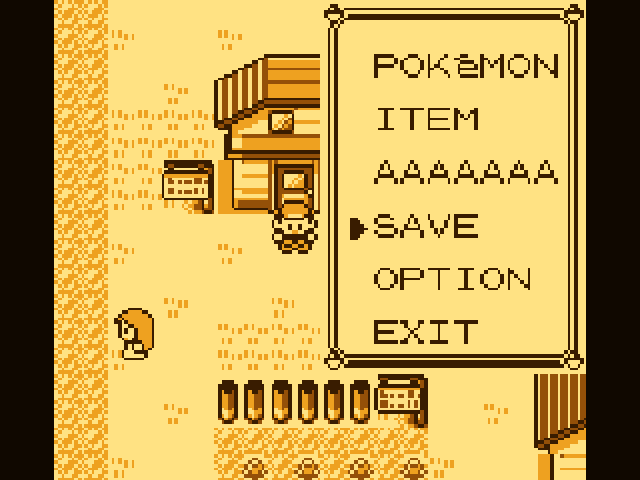
The game’s SAVE menu, captured in the test harness. Your player name will differ.
You can then hold the Q’s Power button to turn it off. Keep the card inserted during play and saving.
If a save fails
Section titled “If a save fails”The choices depend on what you were doing:
| Screen | Keep your changes |
|---|---|
| Save failed after leaving a game | Check or reinsert the same game card, then press Enter to retry. Cancel discards the unwritten changes and returns to the room. |
| Save failed while powering off | Enter retries saving and powers off after success. Cancel returns to the game; release Power and all keys when asked. X opens a separate discard-and-power-off confirmation. |
The normal save/reload path has been tested on the Q. The failed-save shutdown choices are covered by automated tests and still need a physical-device check.
Back up saves
Section titled “Back up saves”Turn the Q off before moving the card to your computer. Copy the entire
GameQ/saves folder to a safe place. Keep the .bak files too; they hold
the previous save generation.
A save uses its game’s filename: pokemon-red.gb goes with
GameQ/saves/pokemon-red.sav. Keep game filenames unchanged after you start
playing so GameQ continues to find the same save.
Add or change games
Section titled “Add or change games”- Turn the Q off and move its card to your computer.
- Copy original Game Boy
.gbfiles intoGameQ/roms. Unzip them first. - Eject the card, put it back in slot A, and turn on the Q.
GameQ scans at startup. If you inserted the card after the room opened, use Enter → Rescan SD card. There are eight shelves; only the first eight files in filename order appear. Adding or renaming a game can change shelf positions after a scan.
The room is stored on the Q. Game files and saves stay on the SD card, so keep the card inserted to play. No-SD room startup is implemented and covered by automated tests; a physical-device check is still outstanding.
Pokémon Red is the tested game. Other original Game Boy titles may work, but have not been broadly tested. Game Boy Color and DOOM are future work.
When something goes wrong
Section titled “When something goes wrong”| Symptom | Try this |
|---|---|
| Shelf … is empty | Put an unzipped .gb file in GameQ/roms, then open the desk and choose Rescan SD card. |
| Rescan failed | Check that the card is in slot A and uses FAT32, then retry. GameQ keeps the previous shelf list when scanning fails. |
| Pokémon text will not advance | Press Z, not Enter or the arrows. Use arrows when choosing a menu answer. |
| Game speed feels slow | Tap SHIFT/CAPS once. Tap it again to return to normal speed. |
| Your save is missing | Confirm you used the game’s SAVE command and launched the same filename from the same card. Preserve GameQ/saves before changing files. |
| Yikes!!, including PSRAM mismatch | Photograph the exact message, then press Enter to return to the room. If it happens again, preserve the card’s GameQ/system folder and report the problem. |
| A solid-color or corrupted screen | Press Cancel to try returning to the room. Note which game and scene triggered it and whether the desk still opens. |
For a useful report, include a screen photo, GameQ version, game filename,
what you pressed immediately beforehand, and the files in GameQ/system.
The last-error.txt file can contain an older error even after successful
play; say when you saw the problem. Share save files only if you want help
with a save-specific issue.
If GameQ will not reach the room, see firmware recovery.